
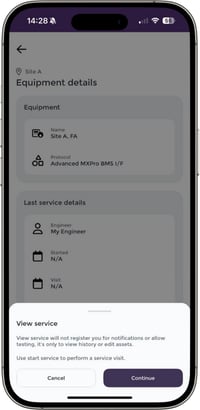
To add an asset to an equipment via the app, you must either view or start a service and ther must be an existing ToC. To do this:
-
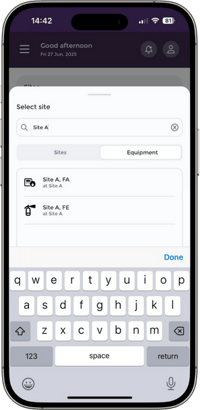
Using the sites card on the app home page, find the relevant site/equipment and select "Service".
- From here you can either view a previous service or start a new one.
Adding or replacing an asset
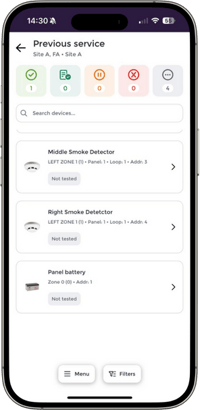
When presented with the list of devices:
-
Select Menu at the bottom of the screen
-
Select Add asset
-
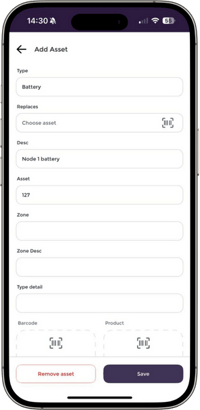
Populate asset details as required (if you are replacing an existing asset, select this from the Replaces field)
-
Click Save
Removing an asset
When presented with the list of devices:
-
Select the relevant asset
-
Select the edit icon and Remove asset
How removed assets shows in Nimbus
- The removed asset will show in the ToC via view ToC page but with a strike through.
- On the servicing report:
- If not tested it won't be shown at all.
- If tested then it will be shown with the result but with a strike through.
- Won't be included in any of the servicing figures at the top